Toden MCP · Claude and ChatGPT
Toden MCP
Work in Todenfrom the AI appyou already use.
Connect Claude, ChatGPT or any MCP client to your workspace. Ask in plain language; Toden checks your role on every call and asks you before every change.
# Claude Codeclaude mcp add --transport http toden https://mcp.toden.co/mcp # Claude, ChatGPT, Cursor, VS Code# Server URL: https://mcp.toden.co/mcpWhat it does
One connection, one workspace, your permissions.
Design verification workflows
Describe the customers you onboard and the countries you serve. Your AI app drafts a workflow with Toden's own rules, shows you the cost, and saves it as a draft for you to publish.
Explain results
Ask why a verification failed or what a customer's risk is based on. Answers come from your workspace, with the checks that ran, never the person's personal data.
Work on cases
Review the case queue, read timelines and evidence, add notes and assign cases, with your approval before anything is saved.
Server URL
Paste it into your AI app. It opens Toden for you to sign in; there is no key to copy.
https://mcp.toden.co/mcp
Claude
Claude on the web and desktop. For Claude Code, run the command at the top of this page.
- 1
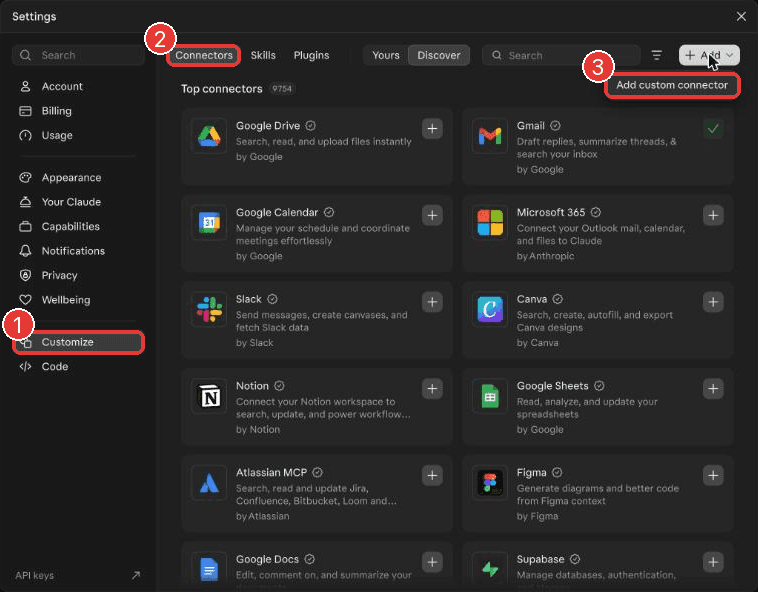
Add a custom connector
In Claude, open Settings → Customize → Connectors. Choose Add, then Add custom connector.
- 2
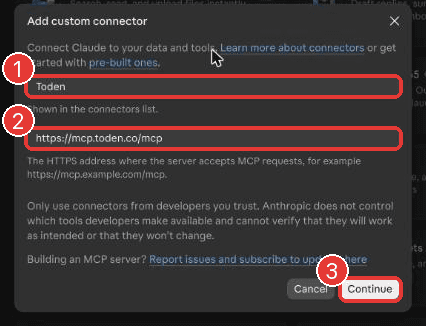
Paste the Toden address
Name it Toden, paste https://mcp.toden.co/mcp as the MCP server URL and choose Continue.
- 3
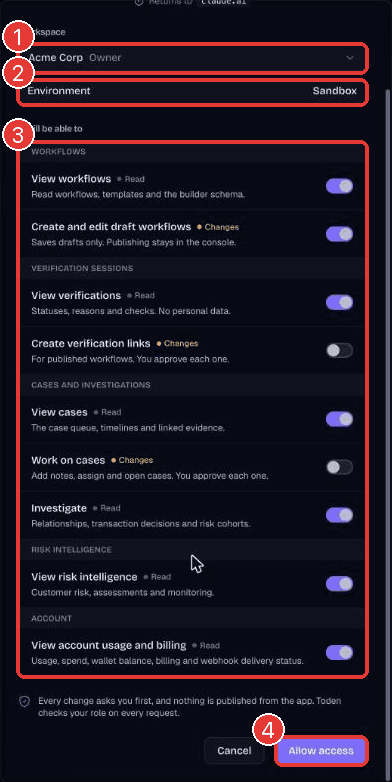
Choose what Claude may do
Connect, sign in to Toden, pick your workspace, environment and permissions, and choose Allow access.
ChatGPT
ChatGPT connects custom servers through developer mode, on the plans OpenAI offers it.
- 1
Turn on developer mode
In ChatGPT, open Settings → Apps & Connectors → Advanced settings and turn on Developer mode.
- 2
Create the connector
Choose Create, name it Toden, paste https://mcp.toden.co/mcp as the MCP server URL and choose OAuth.
- 3
Sign in and allow
ChatGPT opens Toden. Pick your workspace, environment and permissions, and choose Allow access.
Built to be safe
- Acts as you, in one workspace and environment you choose
- Never does more than your role allows, checked on every call
- Asks you before every change; workflows are saved as drafts only
- Disconnect any app at once from Settings → MCP in the console
Frequently asked
A server that lets AI apps such as Claude and ChatGPT use Toden on your behalf, through the Model Context Protocol. It reads your workspace and, with your approval, saves drafts, notes and links.
Connect once.Ask anything.
The set-up guide covers Claude, ChatGPT, Cursor and VS Code, every permission, and troubleshooting.